Yes, it’s time for another Javascript Code Along video! In this summery special we draw a flower together.
Sound like fun? Jump in and follow along. It’s a great opportunity for you as a beginner and intermediate programmer to strengthen your coding skills.
Moreover it’s a fun activity that can help you practice. Bored of writing yet another todo-list app? Come and draw some flowers with me. Who knows where it will lead?
While it’s not a Javascript tutorial as such, this video shows you how to:
declare variables
draw shapes on the HTML canvas element
work with coordinate systems
work with the quadraticCurveTo() method to create curved shapes
The idea behind this code-along series is that practicing a little every day is a great way to improve your programming skills. Rather than coming up with your own projects you can code along with me. Then experiment and take the code to the next level.
Find all of the code-along Javascript in this public GitHub repository:
I regularly publish Javascript Code Along videos to help beginners practice their coding skills. A little each day goes a long way after all!
Each of my videos starts with a small piece of code. This post explains what that code is, how it works, and how you can use it yourself to set up a quick and fun project.
You can copy-paste this into a new file and save it as index.html
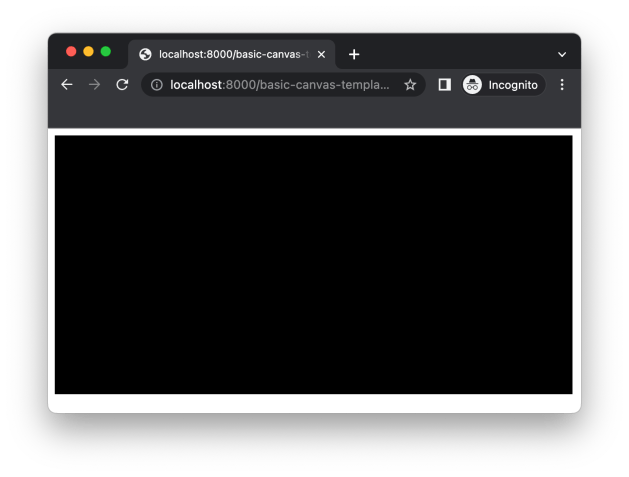
When you open it up in the browser it doesn’t look like much. However this simple piece of code provides a great starting point for many fun Javascript adventures.
Let’s walk through the code bit by bit:
The outer body tags
Around the main content you can see the opening/closing <body> tags.
<body>  <----- this is the opening tag
</body> <----- this is the closing tag, with a leading /
These enclose the content of your web page.
The canvas tag
The next element you see is a canvas tag. This is an HTML tag that provides a graphical surface that you can draw on.
I give this canvas tag an id value so that I can access it using Javascript.
The canvas tag also has a corresponding closing tag, just like the body tag before it.
<body>
   <canvas id="cv"></canvas>
</body>
You can find out more about the canvas tag on MDN’s page
The script tag
HTML pages only understand text and images. You will need to tell it when you include Javascript code. You do this using the script tag. Once again it has a corresponding closing tag as well.
Everything placed inside the script tag must be valid Javascript.
Let’s go through the Javascript code one line at a time.
Using getElementById
The first line uses the built in Javascript method getElementById to get a reference to the canvas tag. It uses the id we gave it earlier on.
A reference is necessary so that you can start to draw on the canvas using Javascript.
const el = document.getElementById("cv");
The variable is called el (short for element) and is declared as a const since it will never change.
Declaring the width and height
The next part of the code stores the width and height of the canvas in two variables:
 const w = 600;
 const h = 300;
This allows us to use the same values in the rest of the code whenever we need them.
By storing the values in variables you make the code easier to maintain. For example it’s easy to change the height of the canvas element by changing the value of h in this single line. The rest of your code will still continue to work.
These are defined as const since their values will never change while the program is running.
Getting the drawing context
In order to draw on the canvas with Javascript you need something called the ‘drawing context’. All the code I write to make animations or draw shapes uses this drawing context. It’s the key method to control the canvas using Javascript.
Again it’s a const since it won’t change while the program is running.
The first line looks a bit strange:
/** @type {CanvasRenderingContext2D} */
It’s actually just there to help the code editor I use (Visual Studio Code) to give code completion help for the ctx variable. So it’s useful but you can leave it out if you don’t need it or use a different editor.
By default the canvas element has a width of 300 pixels and a height of 150 pixels. I want to control the dimensions with Javascript so that the program knows the exact dimensions.
The width to use is already stored in the variable w and the height in the variable h.
The next two lines set the canvas element on the page to those dimensions.
ctx.canvas.width = w;
ctx.canvas.height = h;
Drawing a background
By default the canvas element has a transparent background. It’s invisible unless you add styling to it, or draw images on it.
To start things off I like to apply a solid background fill using code like this:
ctx.beginPath() tells Javascript that we will start a new drawing on the canvas.
ctx.fillStyle sets the colour to use for the rectangle we’re about to draw. It uses the hexadecimal colour code “#000000” which is black.
ctx.fillRect() draws a rectangle. It goes from coordinate 0, 0 (top left) to the coordinate w, h (full width and height of the canvas, ie. bottom right).
The result is a single black rectangle covering the entire area of the canvas element.
Video
Prefer to watch a video? I go through the code in detail in this clip:
Conclusion
Hopefully that will give you a better understanding of the code I use to start many of my Javascript Code Along videos.
Any questions feel free to ask!
Now it’s time for you to start your own Javascript adventures!
In this Javascript code-along video I show beginner programmers how to work with random numbers. It’s done in a fun way to learn more about these core skills..
Come join me to improve your coding skills!
This video shows you how to:
Use Math.random() to generate a random number
Generate larger random numbers
Generate random integers
Pick random elements from a list stored in an array
Make random decisions
The idea behind this code-along series is that practicing a little every day is a great way to improve your programming skills. Rather than coming up with your own projects you can code along with me. Then experiment and take the code to the next level.
Find all of the code-along Javascript in this public GitHub repository:
In this Javascript code-along video I show beginner programmers how to use arrays and objects to efficiently store and manipulate data. It’s done in a fun way by drawing and animating on an HTML canvas element.
Come join me to improve your coding skills!
While it’s not a Javascript tutorial as such, this video shows you how to:
declaring variables – using let and const
using functions
using arrays to store data
using the forEach and filter methods to work with arrays
using objects and object properties to group information that belongs together
drawing and animation techniques using the HTML Canvas element
The idea behind this code-along series is that practicing a little every day is a great way to improve your programming skills. Rather than coming up with your own projects you can code along with me. Then experiment and take the code to the next level.
Find all of the code-along Javascript in this public GitHub repository:
It’s time for another Javascript code along video. Here I write some code to animate a circle, talk a bit about coding, get stuck in debugging and more.
It’s a great way for beginners to improve their coding skills.
While it’s not a tutorial as such, this video includes:
declaring variables
if statements
setInterval
drawing and animating using the HTML Canvas element